07. Create Security Group
Create Security Group
Here, you'll create a security group you will later use to authorize access to your Redshift cluster.
A security group will act as firewall rules for your Redshift cluster to control inbound and outbound traffic.
- Navigate to the EC2 service
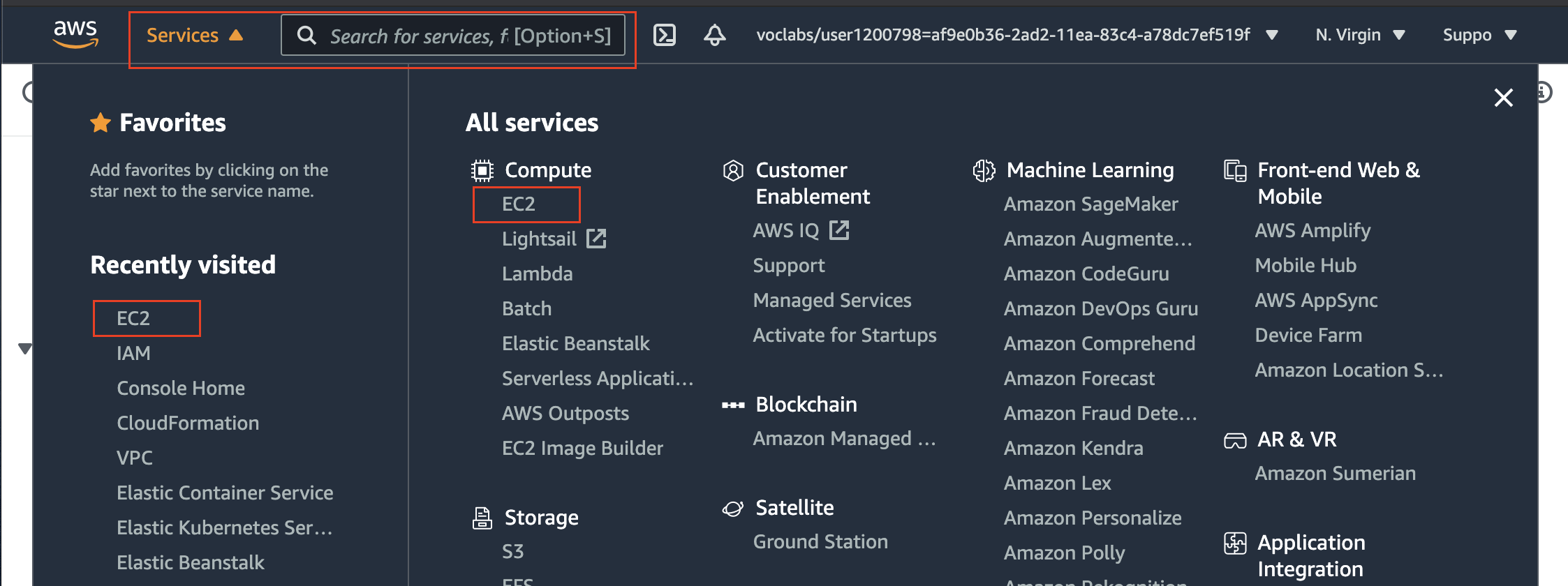
Navigate to any service
- Under Network and Security in the left navigation pane, select Security Groups. Click the Create Security Group button to launch a wizard.
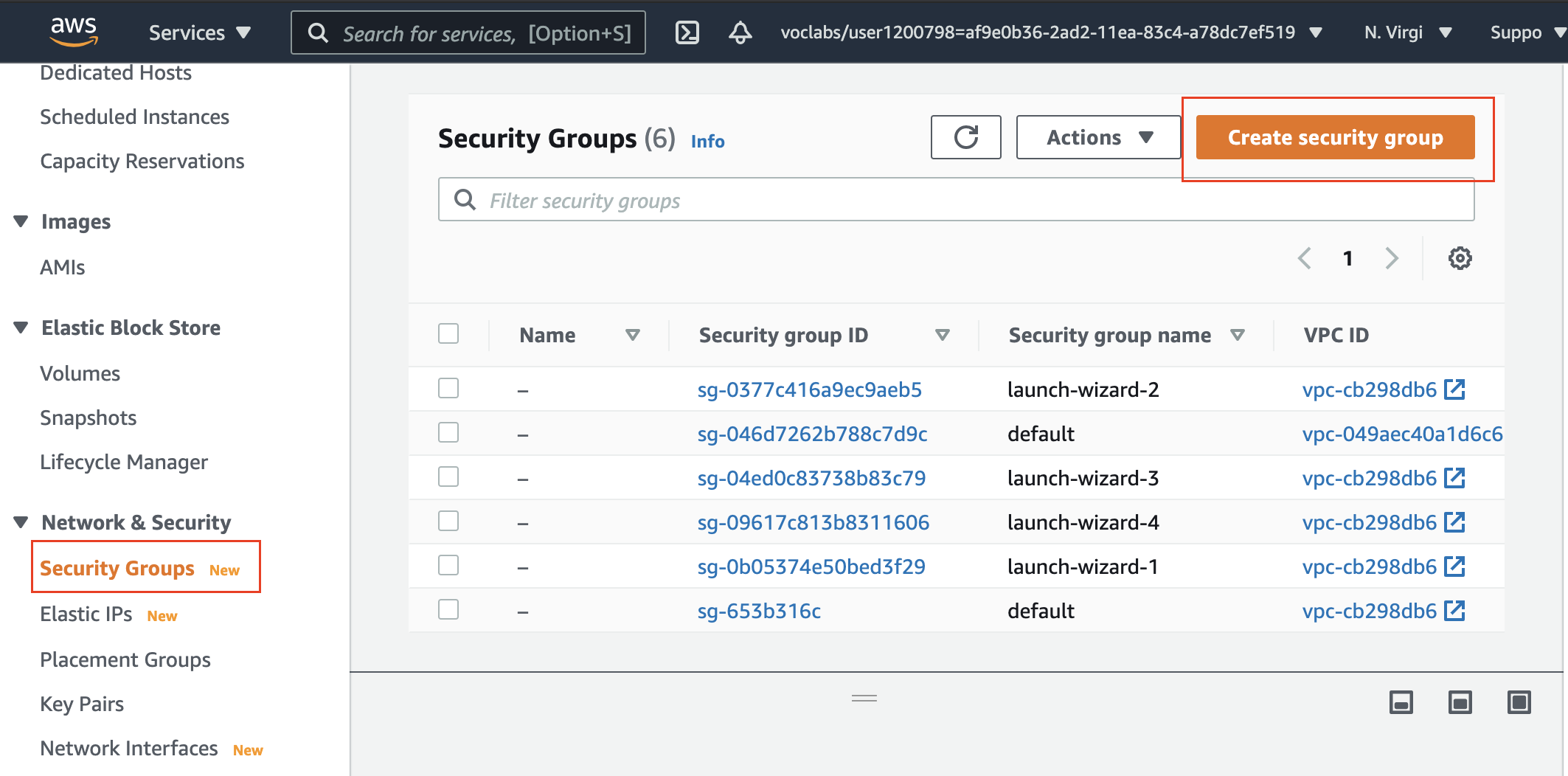
Create a new security group
- In the Create security group wizard, enter the basic details.
| Section | Field | Value |
|---|---|---|
| Basic details | Security group name | redshift_security_group |
| Description | Authorise redshift cluster access |
|
| VPC | Choose the default VPC It is a VPC in a default region, and has a public subnet in each Availability Zone. If a default VPC doesn't show up, create a default VPC |
|
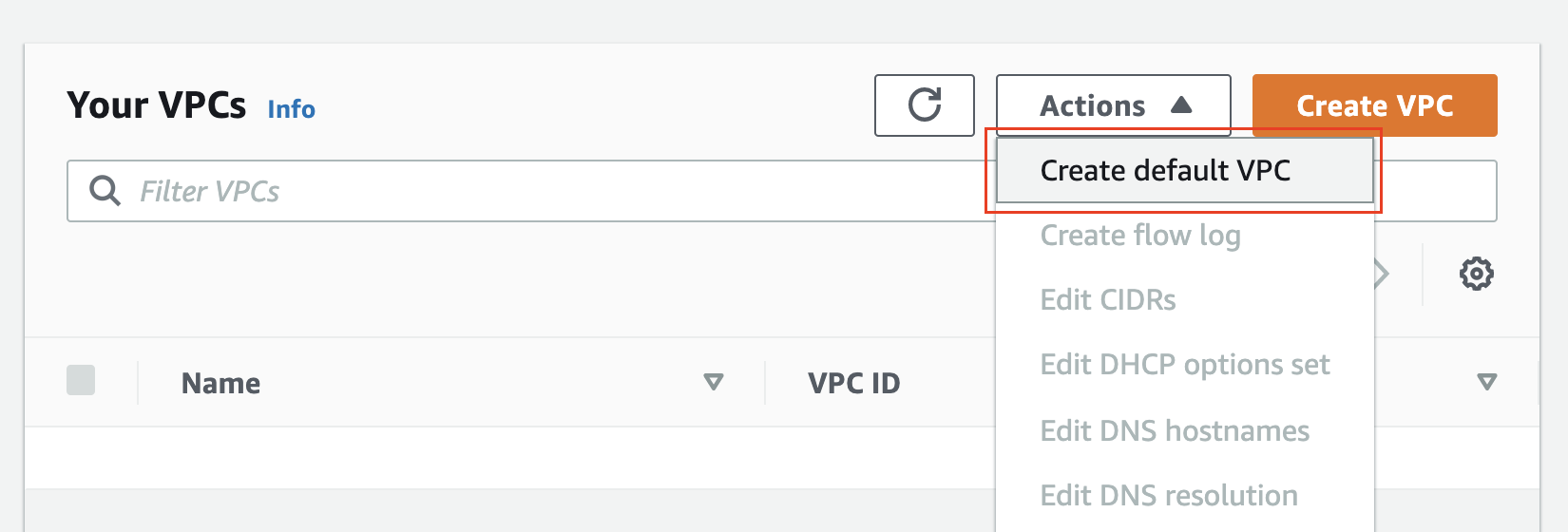
Create a default VPC, if not available already
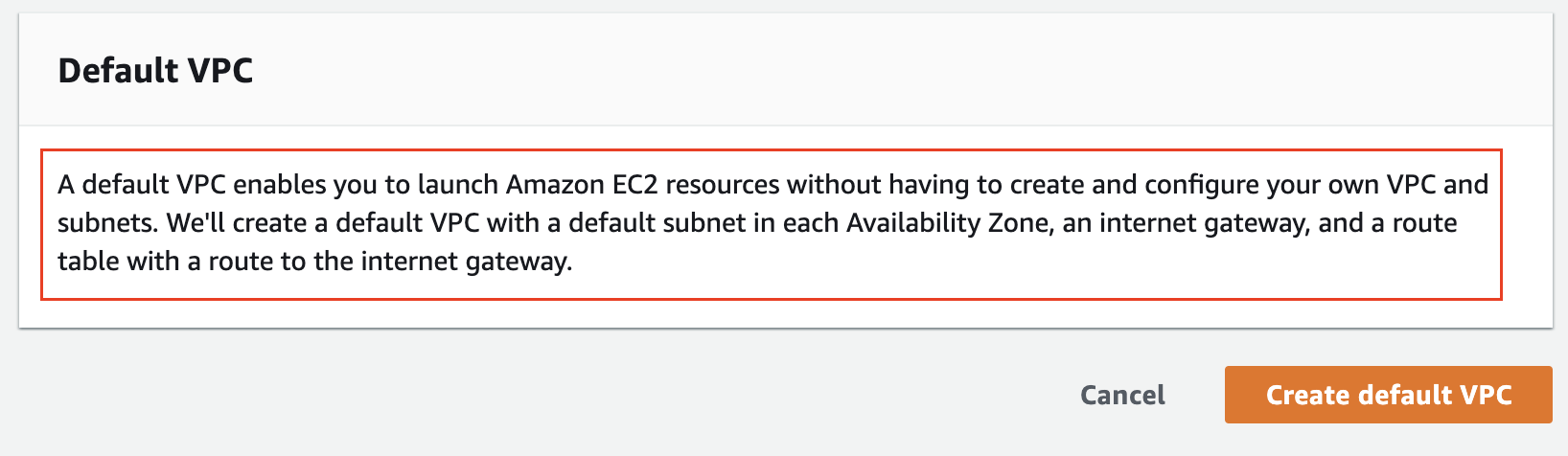
Info about a default VPC
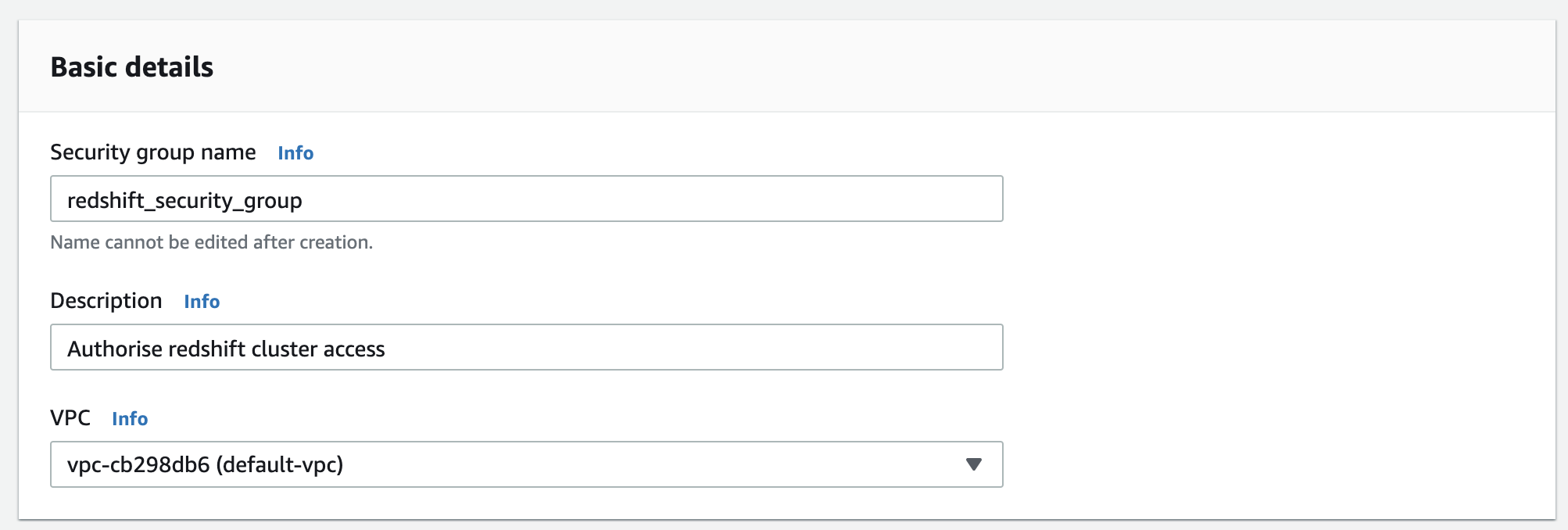
Basic details
- In the Inbound rules section, click on Add Rule and enter the following values:
| Section | Field | Value |
|---|---|---|
| Inbound rules | Type | Custom TCP Rule |
| Protocol | TCP | |
| Port range | 5439 The default port for Amazon Redshift is 5439, but your port might be different. |
|
| Source type | Custom | |
| Source | 0.0.0.0/0(Anywhere in the world) |
|
Important: Using
0.0.0.0/0is not recommended for anything other than demonstration purposes because it allows access from any computer on the internet. In a real environment, you would create inbound rules based on your own network settings.
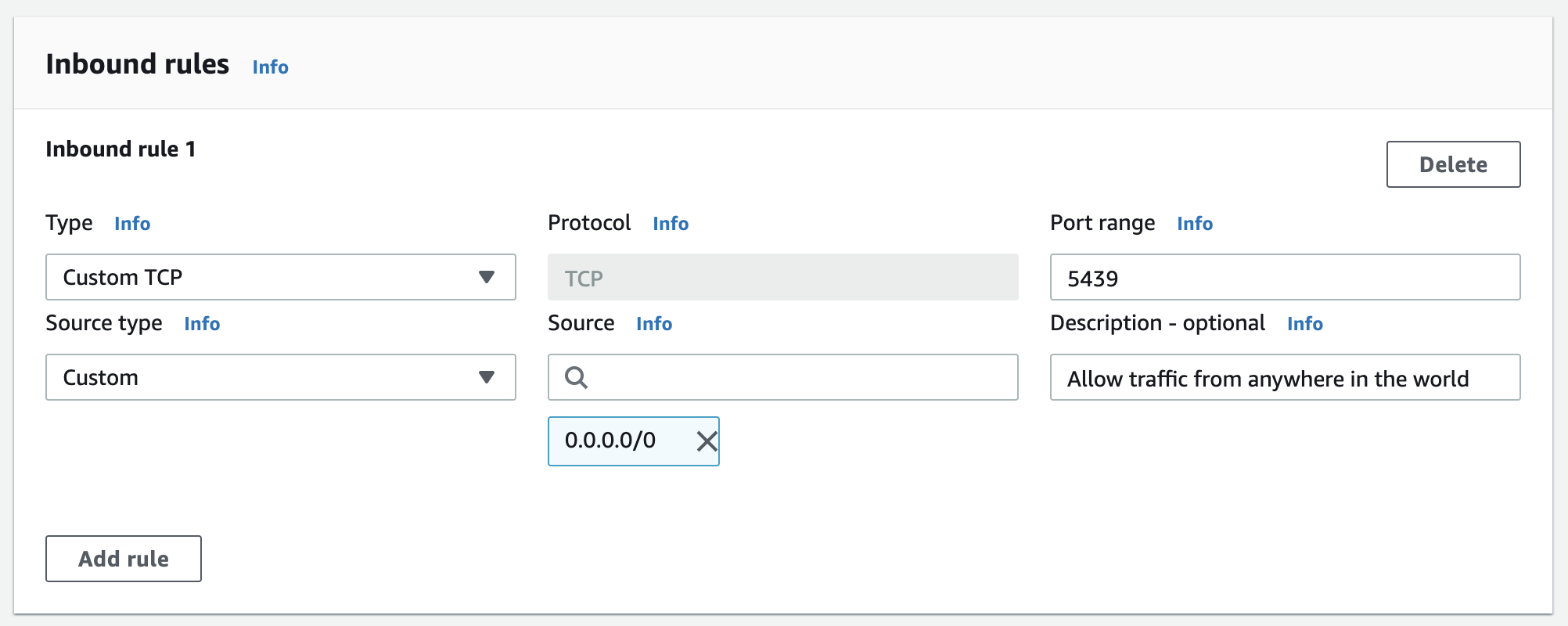
Inbound rules
- Outbound rules allow traffic to anywhere by default.
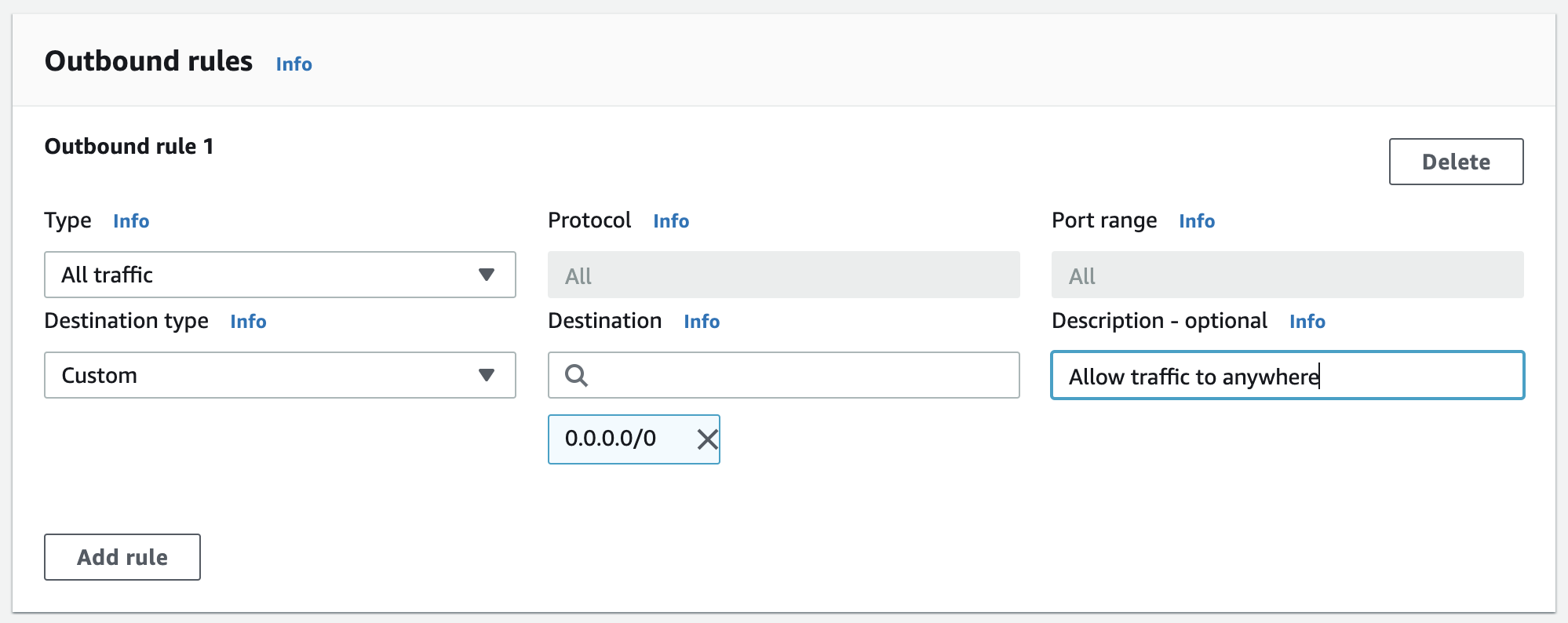
Outbound rules
- Click on the Create security group button at the bottom. You will see a success message.
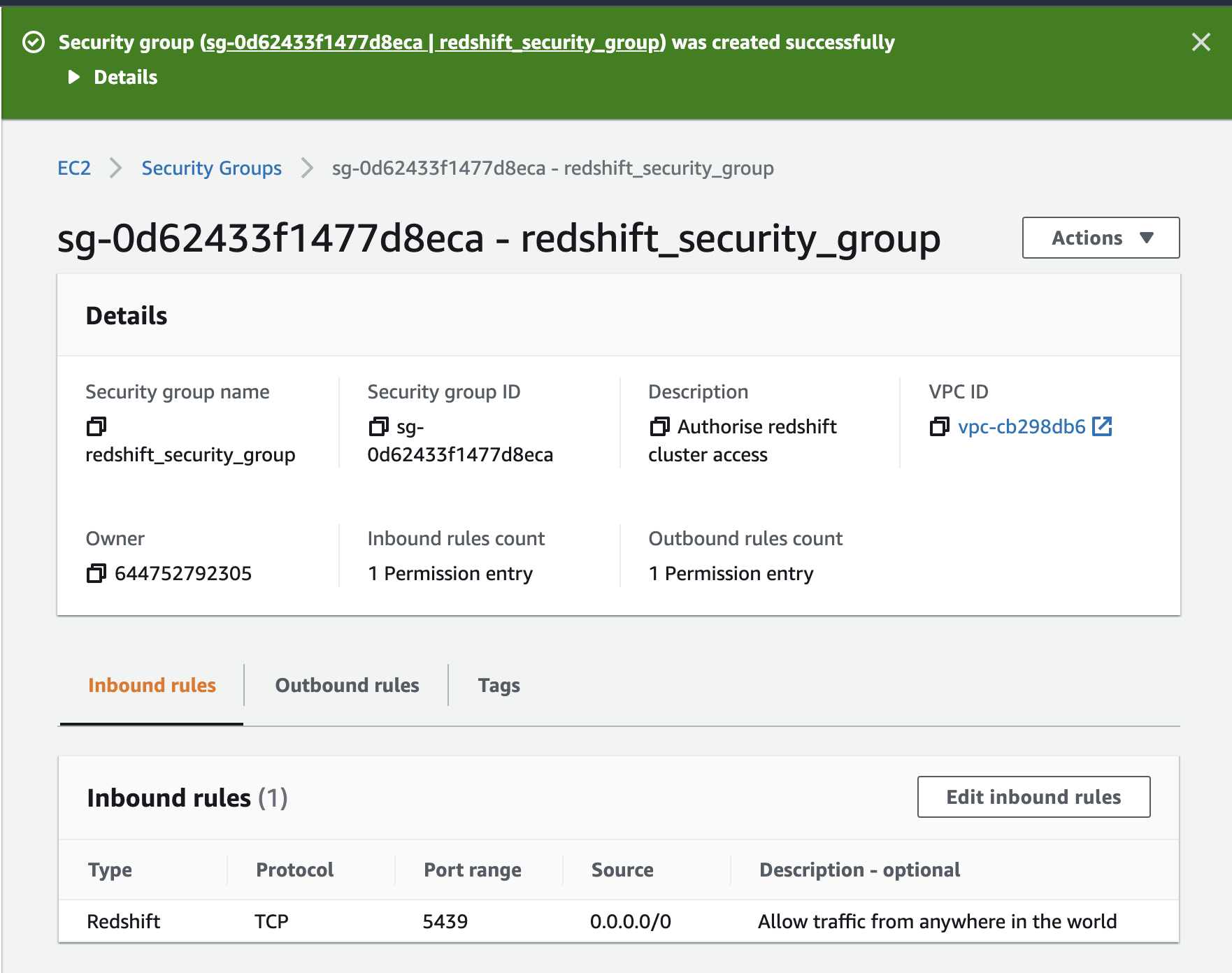
Details of a security group